
Teams has been a place to chat and hold meetings for years. What a lot of businesses still do not realise is that it can be the phone system too: your real business number, ringing on a laptop, answered wherever the person happens to be. This is what that looks like in practice, what has to be switched on first, and the one thing that goes wrong more often than everything else put together.
The 30-second version
- Teams to Teams calls are free and always have been. Ringing an outside number is the part that needs setting up.
- Two things switch it on: a Microsoft licence on the user, and a route to the phone network carrying your numbers.
- No dial pad is almost always licensing, not a fault.
- You do not need desk phones, but Teams certified ones exist where a handset genuinely helps.
- Your main number, queues and out of hours menus all work, up to the point where you need a proper contact centre.
On this page
- What calling in Teams actually means
- What has to be in place first
- What it is like to use day to day
- No dial pad? That is nearly always licensing
- What people actually use it on
- Your main number, queues and out of hours
- The things that catch people out
- Where it fits, and where it does not
- Frequently asked questions
What calling in Teams actually means
There are two different things that both get called calling, and mixing them up is where most of the confusion starts.
Teams to Teams calls are the ones you already make. Ringing a colleague from their contact card, a quick call inside a chat, a meeting. Those are free, built in, and have nothing to do with the phone network.
External calling is ringing any ordinary phone number, and having your business number ring in Teams when a customer calls it. That is the part that needs a licence and a connection, and once it is on, a Calls icon with a dial pad appears in the sidebar and Teams behaves like a phone system.
The simplest test
Open Teams and look down the left sidebar. If there is a Calls icon with a keypad in it, external calling is on for you. If there is not, it is not, and the section further down explains why.
What has to be in place first
Two things, bought separately, and people are regularly sold one and surprised that nothing works.
- A Microsoft licence that adds phone features to the user. This comes from Microsoft as part of your 365 subscription and is assigned per person.
- A route to the phone network, with your numbers on it. This is the telecoms half, and it is where we come in. There are a few ways of doing it, covered in how Teams connects to the phone network.
The part worth pausing on is that both are per user. In most businesses a good proportion of staff never ring an outside line from a desk, and licensing the whole company because it is simpler to buy in one block is the most expensive decision in a Teams migration. It is worth actually counting.
What it is like to use day to day
Everything you would expect from a phone system is there. The difference is that it lives in an app people already have open rather than on a handset they have to be sitting next to.
| What you want to do | How it works in Teams |
|---|---|
| Make a call | The Calls tab, then either a dial pad or start typing a name |
| Answer a call | It rings on every device you are signed in on. Answer on whichever one you are near |
| Transfer | Straight through, or consult the other person first and then hand over |
| Put someone on hold | On the call controls, same as any phone |
| Voicemail | Arrives in Teams with a written transcript, so you can read it rather than listen |
| See who called | Full call history in the Calls tab, with click to call back |
| Forward calls | To a colleague, to a group or to your mobile |
| Ring more than one device | Simultaneous ring, so a desk and a mobile go at once |
| Have somebody answer for you | Delegation, so an assistant can pick up and make calls on your behalf |
None of this is unusual for a phone system. What changes is that the call sits next to the chat history, the shared files and the meeting with the same customer, which is the actual argument for doing it this way.
No dial pad? That is nearly always licensing
This is the single most common question we get asked about Teams calling, and it is almost never a fault. The dial pad only appears once the user has both halves in place, and it is usually one of four things.
- The phone licence is not assigned to that user. The business has it, the person does not. Easily missed when somebody joins.
- No phone number has been assigned. The licence is on, but nothing has been attached to it, so there is nothing to dial from.
- The calling policy has not been applied to that user or that group in the Teams admin centre.
- It simply has not propagated yet. Changes can take a while to appear. Signing out completely and back in shifts it more often than people expect.
Before raising a ticket
Sign out of Teams entirely, including on mobile, and back in. It resolves a surprising proportion of these, and it takes thirty seconds.
What people actually use it on
- A laptop and a headset. This is what most office staff end up using, and for most of them it is genuinely better than a handset they have to sit by.
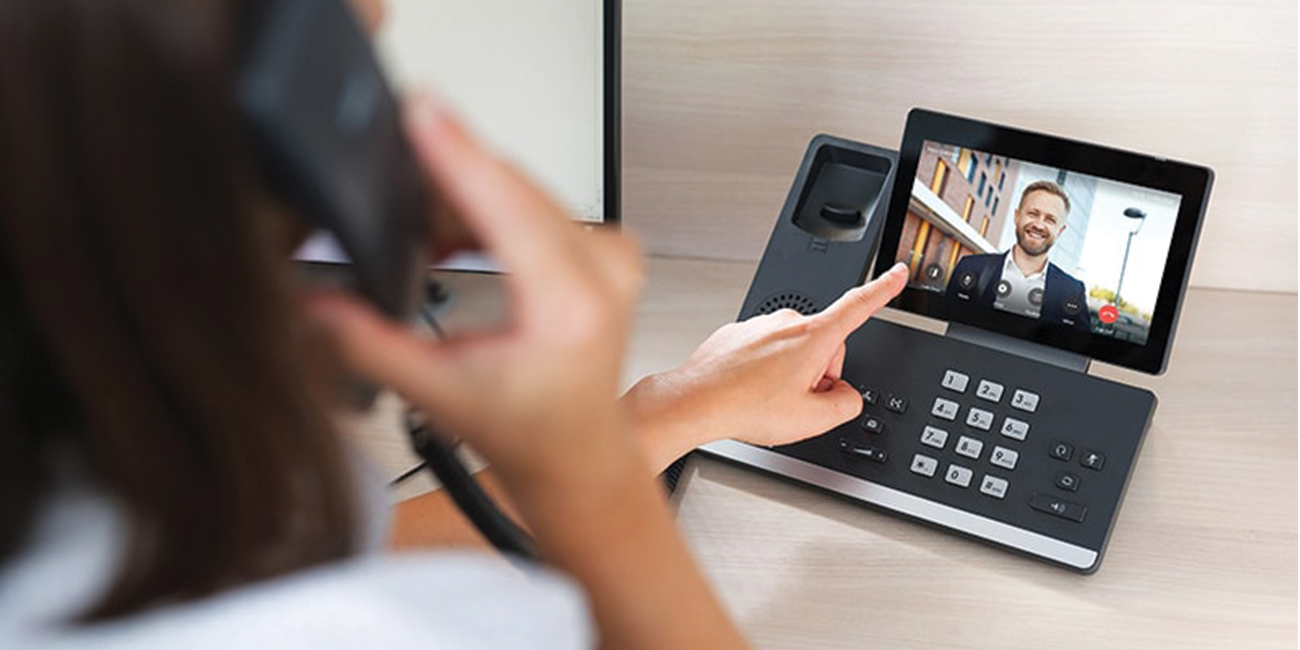
- A Teams certified desk phone. Where a real handset helps, such as reception, a warehouse, a kitchen or a workshop, these run Teams natively and sign in as the user. Not every desk phone works, it has to be certified, so do not assume an existing handset will carry over.
- The mobile app. The same business number, on a phone, without giving out a personal mobile number.
- Meeting room kit. Room systems dial out on the same numbers, which matters more than it sounds once people stop dialling in on speakerphone.
A reasonable default is headsets for most people, handsets for the handful of places that genuinely need one, and the mobile app for anyone who is out. Buying a desk phone for every person because that is what the old system had is how a Teams migration stops saving money.
Your main number, queues and out of hours
The number on your website and your vans works exactly as it does now. It is attached to a resource account rather than a person, and from there it can ring a queue, a group or a menu.
The things most businesses need are all present. Call queues ring a team in the order you choose. Auto attendants give callers a menu. Out of hours routing sends evenings and weekends somewhere sensible. Holidays can be set in advance so nobody has to remember on Christmas Eve.
Where it stops is reporting and scale. Teams will tell you a call happened. It will not give you the live wallboards, the historic analytics, the omnichannel handling or the workforce planning that a busy support operation needs. At that point the answer is Teams alongside a contact centre platform, not Teams instead of one.
The things that catch people out
| What | Why it matters |
|---|---|
| Emergency call addresses | On an old phone line the address came with the line. In Teams the app could be anywhere, so the address on each user has to be set deliberately and kept current |
| Equipment does not move | Lifts, door entry, alarms and card terminals have no Microsoft account. They keep their own connections, and they are the most commonly forgotten part of a migration |
| Presence affects calls | Setting yourself to do not disturb does what it says. Useful, until somebody wonders why the phone never rings |
| Network quality | Voice over a poor or congested connection is worse than no voice. It is fixable, but it should be checked before rather than discovered after |
| Handset compatibility | Only Teams certified phones sign in properly. An existing handset from an old system usually will not |
Where it fits, and where it does not
Teams calling suits businesses whose people already live in Teams, who mostly make ordinary calls, and who would rather have one system than two. If that is you, it is frequently the neatest answer available, and the PSTN switch-off in January 2027 means you are having the conversation anyway.
It is a weaker fit if you are not on Microsoft 365 at all, if you run a high volume contact operation, if the building is full of analogue equipment, or if most of your people need proper cordless handsets rather than a laptop. None of those rule it out. They just mean the answer is Teams plus something else, and it is much better to work that out at the start.
Want to see whether it fits before committing?
Tell us how many people actually ring outside numbers, what handsets you have now and what is plugged into the phone sockets around the building. That is normally enough for us to tell you what it would take and what it would cost.